.svg)
.svg)

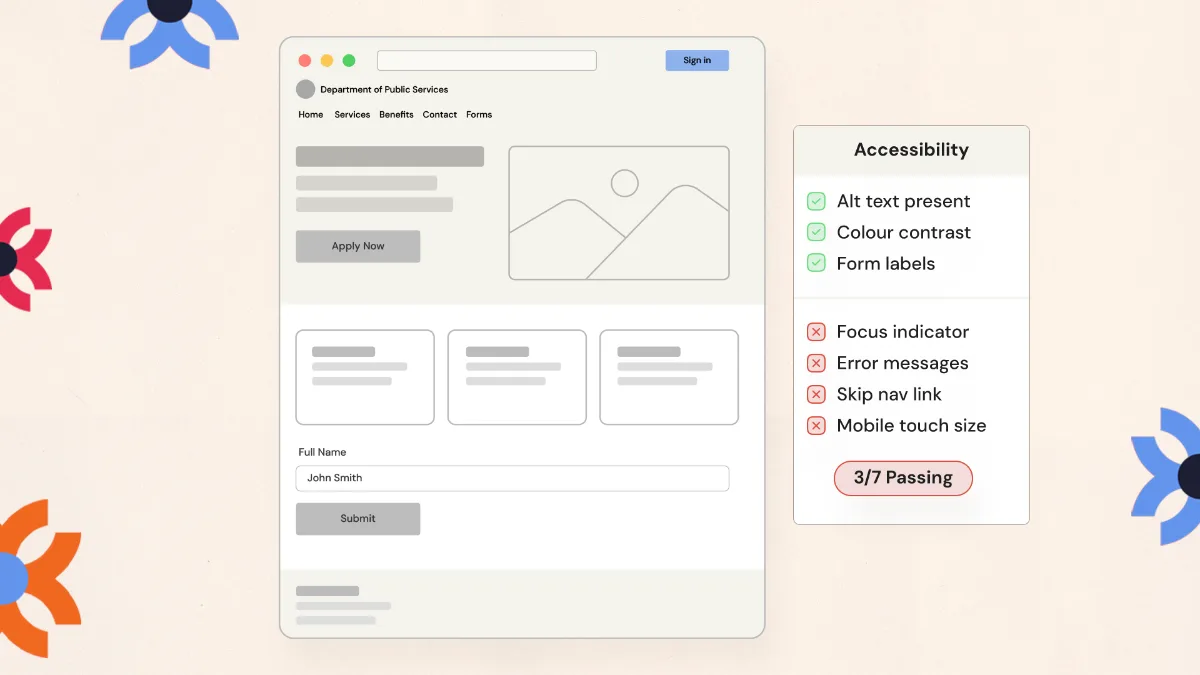
A municipal ADA audit combines automated scanning with human testing. Run the keyboard test, check color contrast, review the PDF library, verify image descriptions, and request a VPAT from every vendor whose tool appears on your site.
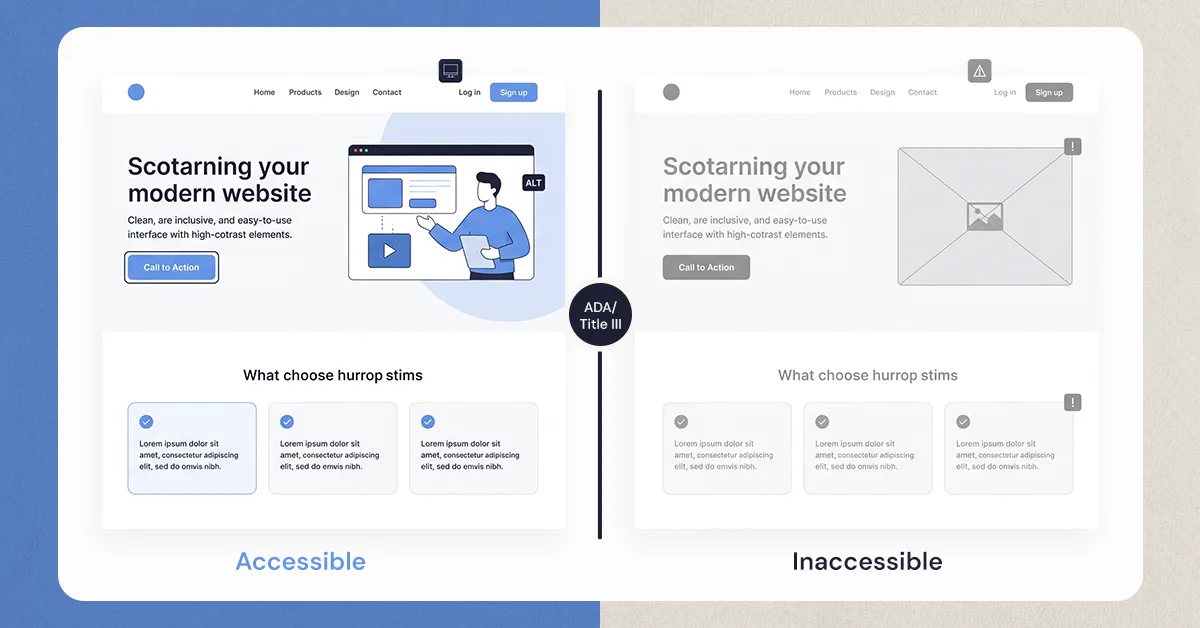
Your municipal website is the digital front door to your community, and unlike City Hall, it never closes. But for residents who rely on assistive technology, that front door can feel like it has a deadbolt on it. According to the CDC, one in four adults in the United States lives with some form of disability. Ensuring these residents can independently complete everyday tasks, paying a water bill, checking park hours, finding emergency alerts, is not just a legal requirement. It is a fundamental civil right.
The good news? You do not need to be a software engineer to lead this effort. A clear, practical ADA website compliance audit is something any municipal staff member can understand and act on.
Decoding WCAG 2.1 AA: The Digital Building Code Every City Official Should Know
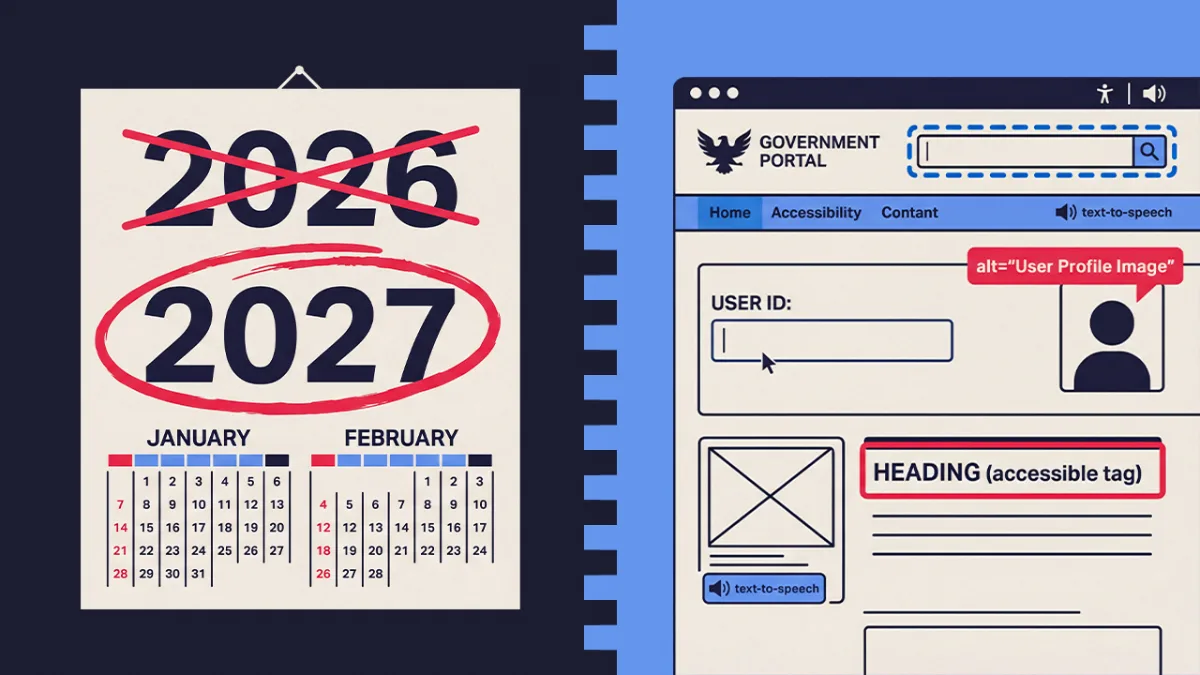
Just as physical buildings must follow architectural codes, digital spaces follow their own set of rules. The Web Content Accessibility Guidelines (WCAG), developed by the World Wide Web Consortium (W3C), serve as that digital building code. They are the recognized international standard for web accessibility and the foundation for both ADA compliance and Section 508 requirements for government websites.
WCAG is organized into three levels of conformance:
- Level A — The minimum baseline. Without it, many users simply cannot access your site at all.
- Level AA — The current legal benchmark for government websites and the target for most ADA compliance audits.
- Level AAA — The gold standard. Not always feasible for every page, but worth striving toward.
What matters most is understanding the four core principles behind all WCAG criteria, known as POUR:
- Perceivable — Information must be presented in ways all users can detect. A color-coded zoning map, for example, needs a text description so it is not invisible to someone who cannot distinguish color.
- Operable — Residents must be able to navigate your website without relying on a mouse.
- Understandable — Content and instructions must be clear, logical, and predictable. Paying a utility bill online should not require guesswork.
- Robust — Content must work reliably across different devices, browsers, and assistive technologies, including screen readers.
Once you see your website through this framework, compliance transforms from a technical checkbox into a practical act of civic service.
The 5-Minute Keyboard Test: How to Spot Navigation Traps Without a Mouse

Set your mouse aside and try navigating your municipal homepage using only your keyboard. This five-minute exercise reveals some of the most consequential accessibility failures on government websites.
Many residents with motor disabilities or conditions like repetitive strain injury cannot use a mouse. Instead, they navigate by pressing the Tab key to move between interactive elements and the Enter key to activate them. If your site does not support keyboard-only navigation, these residents cannot complete basic civic tasks.
Here is what to watch for:
- Focus indicators — Every time you press Tab, a visible outline should show which element is currently selected. If you cannot tell where you are on the page, residents using keyboard navigation will be equally lost. WCAG 2.1 requires focus indicators to be clearly visible.
- Logical tab order — Focus should move in a predictable sequence, left to right and top to bottom. Erratic jumping creates a disorienting experience.
- Keyboard focus traps — The most critical issue to identify. A focus trap occurs when a resident tabs into a feature, like a newsletter pop-up, but cannot tab back out. When residents get trapped, they abandon the page entirely.
Smooth keyboard navigation is a major win, but it stalls completely if the documents your site links to are inaccessible.
Stop Posting Scanned Images: Auditing Your Municipal Document Library

A common scenario on city websites: a staff member prints a document, hand-signs it, scans it, and uploads it as a PDF. That file looks like a document, but to a screen reader it is just a photograph. Screen readers cannot read photographs.
Without Optical Character Recognition (OCR), public notices, meeting minutes, and permit forms become completely inaccessible to residents with visual impairments. These are legal public records that every resident has the right to access.
Check any PDF in ten seconds using the Select Text method. Open the file and try highlighting a sentence. If you can select individual words, it contains real digital text and is accessible. If your cursor becomes a crosshair and selects nothing, you have a scanned image that a screen reader cannot process.
Other warning signs include search returning zero results for visible text, or an unusually large file size for a short document.
To prevent future failures, always use "Save as PDF" directly from your word processor rather than printing and scanning. For older archived documents, PDF remediation is required, which involves adding digital tags that guide assistive technology through the document. Start with your highest-traffic files: utility forms, permit applications, and council meeting minutes.
The WAVE Audit: Using Free Browser Tools to Catch Initial Issues
Once you have completed your manual checks, bring in a free automated tool to identify structural issues across your pages. The WAVE Web Accessibility Evaluation Tool, developed by WebAIM at Utah State University, is one of the most trusted tools available. It is a free browser extension for Chrome and Firefox.
After installing WAVE, navigate to any page on your municipal website and click the extension icon. WAVE overlays the page with color-coded icons flagging potential accessibility issues, giving you a visual starting point for your ADA compliance checklist without any coding knowledge required.
Results are organized into two categories:
- Errors (red icons) — Definitive failures that must be fixed, such as images with no text description, unlabeled form fields, and empty links.
- Alerts (yellow icons) — Potential issues requiring human judgment to assess.
One critical limitation to understand: automated scanners like WAVE detect only around 30 to 40 percent of real accessibility barriers. They find structural problems well, but cannot tell you whether an image label actually makes sense to a resident. Manual testing must always accompany automated scanning, never be replaced by it.
The 'Phone Description' Test: Auditing Your Website's Image Descriptions
Automated tools flag missing alt text, but they cannot evaluate whether the description is actually useful. That is where this simple test helps.
Think of a resident calling your office because they cannot see the website. How would you describe each image over the phone so they fully understand what it shows and why it is there? That verbal explanation is the standard your alt text should meet.
Context matters more than simple labeling. For a photo of new playground equipment at Centennial Park:
- Unhelpful: "Picture of park." This tells the resident nothing about what is new or why the image was posted.
- Helpful: "New inclusive swing sets on accessible rubber flooring at Centennial Park, opened June 2024." This delivers the actual civic information.
Not every image needs a detailed description. Generic stock photos or decorative borders that carry no meaningful civic information should be marked as "decorative" in your content management system. Screen readers will skip them entirely, avoiding unnecessary clutter for the resident.
Color Contrast Audits: Ensuring Readability for Every Resident
A resident trying to pay a parking ticket on a smartphone in bright sunlight will struggle if your Submit Payment button features light gray text on a white background. Poor color contrast affects people with low vision, color blindness, and aging eyesight, as well as anyone using a screen in poor lighting.
WCAG 2.1 AA requires a minimum contrast ratio of 4.5:1 for standard text and 3:1 for large text (18 point or larger, or 14 point bold). Free tools like the WebAIM Contrast Checker let you enter your text and background colors to instantly see whether the combination meets the requirement.
Common failures on municipal websites include red error messages on dark backgrounds, pastel event banners with white text, and light gray placeholder text in form fields. Updating your internal color palette to use only compliant combinations is straightforward. Ensuring third-party tools you purchase meet the same standards requires careful vendor evaluation.
Evaluating Software Vendors: How to Read a VPAT and Avoid Overlay Scams
When your municipality purchases third-party software, whether for online bill payment, permit applications, council meeting video streams, or recreation registration, accessibility responsibility does not transfer entirely to the vendor. If a resident cannot use a tool you have purchased, your city may still face legal liability. This makes vendor evaluation a critical part of any ADA compliance audit.
1. Avoid Accessibility Overlay Widgets
Many vendors, and some well-meaning IT departments, turn to "accessibility overlays" as a quick fix. These are JavaScript widgets that add an accessibility toolbar to your site, claiming to make it compliant with a single installation. They sound appealing. They do not work.
Overlays do not fix the underlying code. They attempt to patch accessibility problems on the surface while leaving the broken structure underneath intact. Disability advocacy organizations, including the National Federation of the Blind, have formally opposed overlay products, and numerous municipalities have faced ADA lawsuits even after installing them. Think of it like placing a ramp-shaped sticker over a photograph of stairs: it looks like access, but it provides none.
2. Request and Evaluate a VPAT
A Voluntary Product Accessibility Template (VPAT) is a standardized document — developed by the Information Technology Industry Council (ITI) — in which a vendor discloses how their product conforms to accessibility standards. Think of it as the vendor's accessibility report card. A VPAT does not guarantee compliance, but it tells you exactly where the product succeeds and where it falls short — which is far more useful than a marketing claim.
When reviewing a VPAT, ask yourself:
- Does this VPAT reflect the current version of the software, or is it outdated? Ask when it was last updated.
- Was the VPAT completed by an independent third-party auditor, or self-reported by the vendor? Independent audits are significantly more reliable.
- Does the product support full keyboard navigation for its primary functions? Can a resident submit a permit application using only the Tab and Enter keys?
Also ask the vendor directly:
- What is your process for fixing accessibility issues reported by our residents, and what is the typical timeline for resolution?
- Can you provide documentation of recent accessibility remediations made to this product?
Holding vendors accountable during procurement protects your municipality legally and sends a clear signal that inclusive civic participation is not optional, it is a condition of doing business with your city. Document your procurement review process carefully; a written record of your good-faith efforts is a meaningful legal defense in the event of a complaint.
The Path to Compliance: Drafting Your Official Accessibility Statement
Web accessibility is not a one-time project. It is an ongoing commitment that evolves as your website grows and technology changes. The goal is not overnight perfection. It is building a culture of continuous improvement.
Start with the pages that affect the most residents: online bill pay, emergency alerts, permit applications, and council meeting information. Fix those first and document your progress. That documentation demonstrates what the legal community calls a "Good Faith Effort," which is a meaningful defense if your municipality faces an ADA complaint.
One of the most impactful steps you can take today, without any technical changes, is publishing an official Accessibility Statement in your website's footer. It must include four components:
- A clear commitment statement — Your city's explicit commitment to digital accessibility and WCAG 2.1 AA standards.
- Current conformance status — An honest description of where your site stands, including known limitations.
- Remediation timeline — Your schedule for addressing known issues.
- A resident feedback channel — A phone number and email address for residents to report barriers, creating a direct pipeline of real-world feedback.
Publishing this statement builds resident trust, signals that improvement is actively underway, and is a prerequisite for many federal and state grant programs requiring demonstrable accessibility commitments.
Digital inclusion is a governance responsibility, not just a technical one. The steps in this guide, from the keyboard test and PDF audit to the WAVE scan, contrast check, and vendor evaluation, are your foundation. Each one removes a real barrier for a real resident. Start today.
Want results like this
Your website should make money, not excuses. Let us find the revenue hiding in your current experience.
FAQs
Quick answers to the questions we hear most about website conversion and UX design.
WCAG 2.1 AA is the internationally recognized web accessibility standard and the current legal benchmark for government websites in the United States. Yes, your city website must meet it.
Start with a free tool like WAVE to scan for structural issues, then manually test keyboard navigation, image descriptions, color contrast, and document accessibility.
Scanned PDF documents are among the most widespread failures. When staff print, sign, and scan documents, the resulting file is unreadable by screen readers.
No. Accessibility overlays do not fix underlying code issues and have been formally opposed by major disability advocacy organizations. Municipalities have faced lawsuits even after installing them.
It should include your city's commitment to WCAG 2.1 AA standards, current conformance status, a remediation timeline, and a contact channel for residents to report accessibility barriers.
Related articles
More field notes on conversion, UX, and building websites that sell.